
Secret Context
Store and manage sensitive information like API keys, passwords, and certificates securely within OpenDialog.
The Secret Context is a secure, centralised store for sensitive information that your AI agent needs to interact with external services. It’s designed to hold values that should never be exposed in logs, messages, or debugging tools — such as API keys, passwords, signing keys, and client certificates.
Why use the Secret Context?
Section titled “Why use the Secret Context?”When integrating with 3rd party APIs, you’ll often need to provide credentials like API keys, OAuth client secrets, or client certificates. The Secret Context gives you a dedicated, secure place to store these values with built-in protections:
- Encryption at rest — All secret values are encrypted in the database
- Automatic masking — Secrets appear as
••••••••in logs, messages, and debug outputs - Controlled decryption — Secret values are only decrypted where they’re needed: within Webhook V2 authentication configurations
Managing secrets
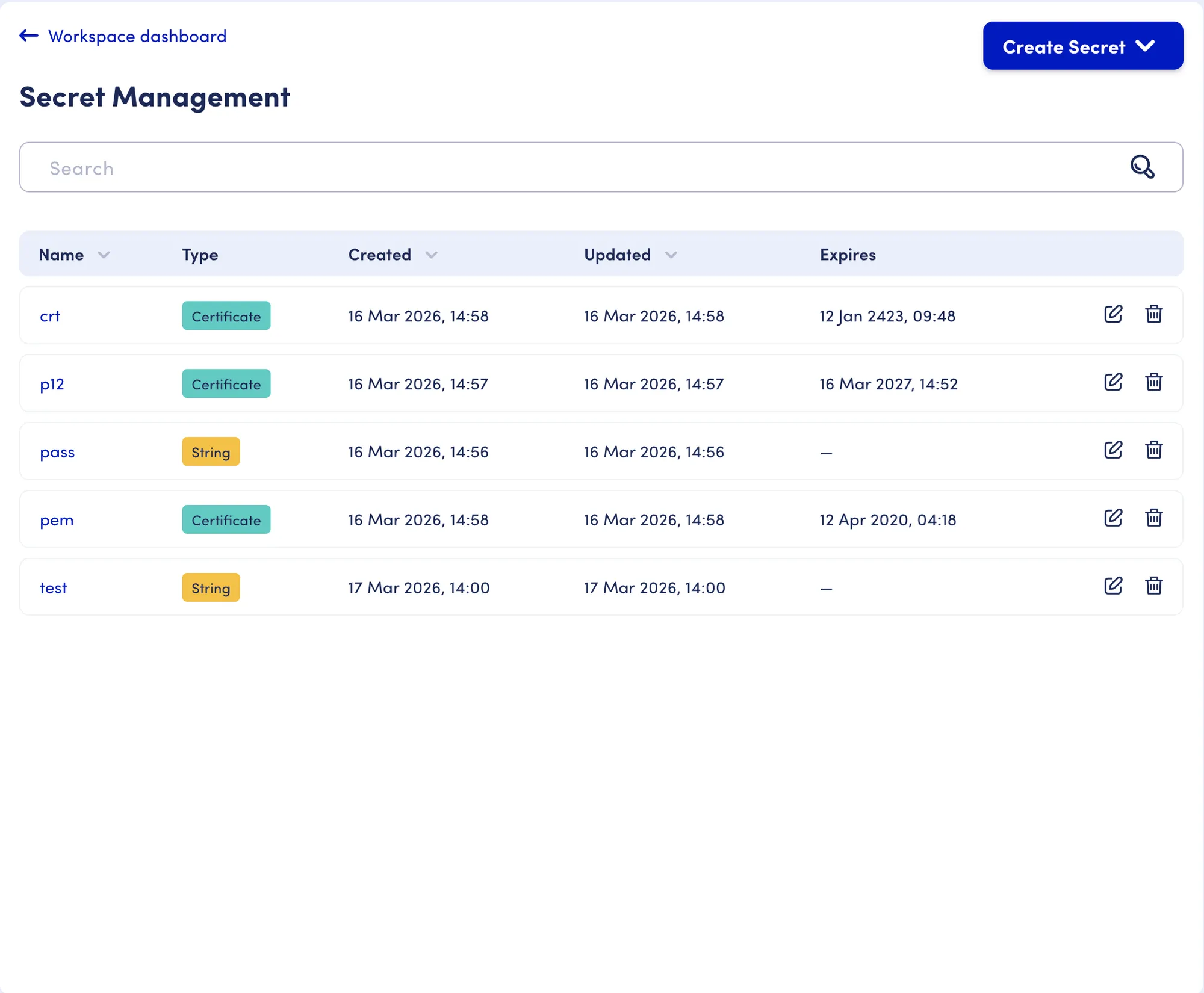
Section titled “Managing secrets”You can manage secrets through the OpenDialog admin interface. Navigate to the Secret Management page (accessed from the 3 dot menu by your username in the sidebar) to view, create, and manage your secrets.
Access control
Section titled “Access control”Access to the Secret Context is restricted based on user role:
| Role | Access |
|---|---|
| Admin | Full access — can create, edit, and delete secrets and certificates |
| Editor | Can view a list of secret names only |
| Others | No access — the Secret Context is not visible |
Adding a secret string
Section titled “Adding a secret string”Secret strings are for storing sensitive text values like API keys, passwords, and tokens.
-
Navigate to the Secret Context
Section titled “Navigate to the Secret Context”Open the Secret Management page from the three-dot menu next to your username in the sidebar.
-
Create a new entry
Section titled “Create a new entry”Click the button to add a new secret and select Secret String as the type.
-
Enter the details
Section titled “Enter the details”- Name — A descriptive name for your secret (e.g.
api_key,hmac_signing_key). This is how you’ll reference it:{secret.api_key} - Value — The sensitive value to store. Once saved, this value will be encrypted and won’t be visible again.
- Name — A descriptive name for your secret (e.g.
-
Save your secret. It’s now available to use in your Webhook V2 authentication configurations.
Adding a certificate
Section titled “Adding a certificate”Certificates are for storing client certificates used in mTLS authentication. OpenDialog supports multiple certificate formats: P12, PFX, PEM, CER, CRT, and KEY.
-
Navigate to the Secret Context
Section titled “Navigate to the Secret Context”Open the Secret Management page from the three-dot menu next to your username in the sidebar.
-
Create a new entry
Section titled “Create a new entry”Click the button to add a new secret and select Certificate as the type.
-
Upload your certificate
Section titled “Upload your certificate”- Name — A descriptive name (e.g.
mtls_certificate). This is how you’ll reference it:{secret.mtls_certificate} - Certificate file — Upload your certificate file (P12, PFX, PEM, CER, CRT, or KEY format)
- Password — If your certificate is password-protected (e.g. P12/PFX files), select an existing secret string from the Secret Context that holds the password. You’ll need to create the password as a secret string first.
- Name — A descriptive name (e.g.
-
Review and save
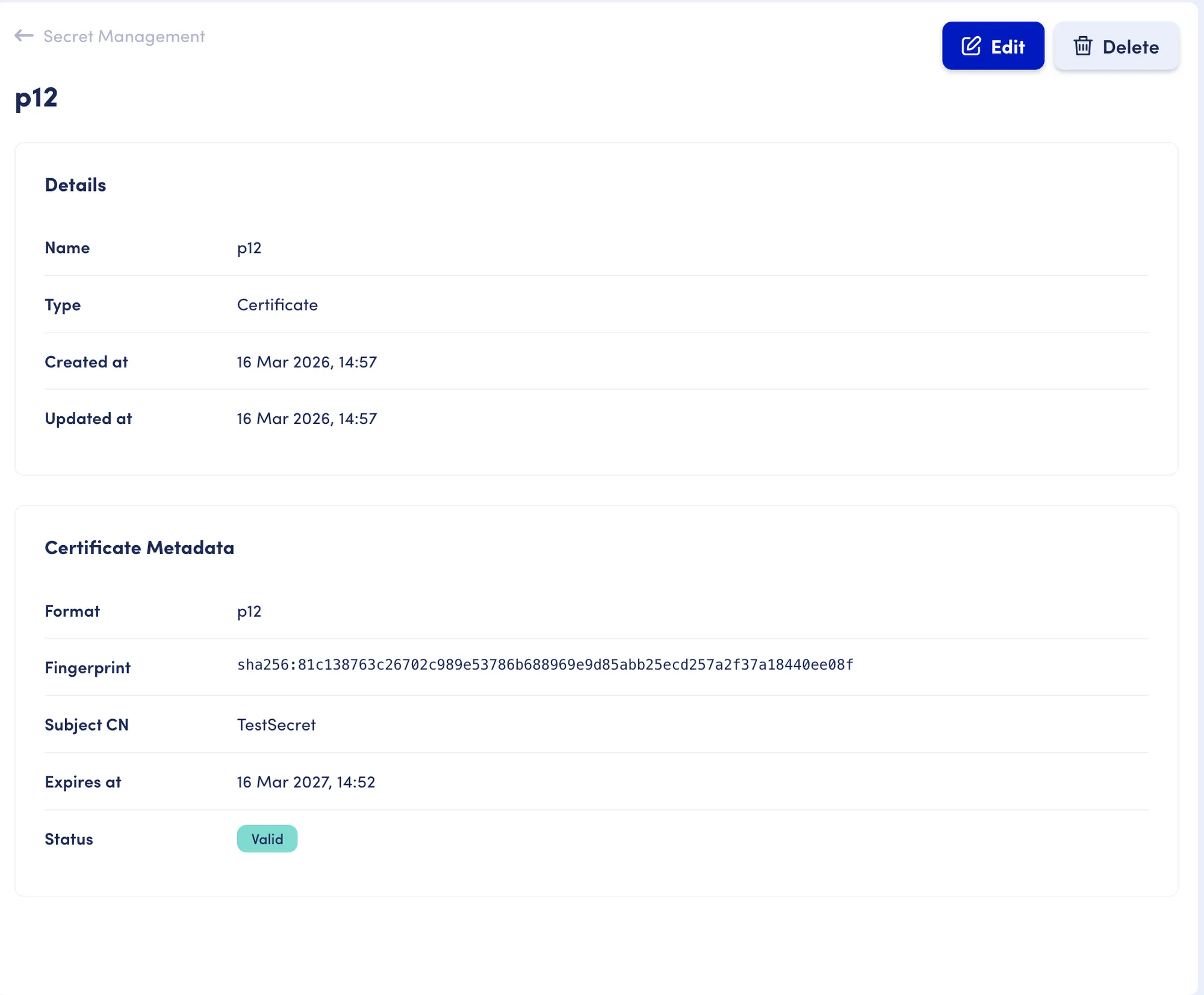
Section titled “Review and save”After uploading, OpenDialog extracts and displays certificate metadata including the fingerprint, subject, and expiration date. Review these details and save.
Using secrets in webhook authentication
Section titled “Using secrets in webhook authentication”Secrets are referenced using the syntax {secret.your_secret_name} within Webhook V2 authentication configurations. Here’s how they work with each authentication method.
In Header Authentication
Section titled “In Header Authentication”Use secrets as header values or in authentication variables:
{ "variables": { "signing_key": "{secret.hmac_signing_key}", "signature": "hmac-sha256({_webhook.body}, {_auth.signing_key})" }, "headers": { "Authorization": "Bearer {secret.api_key}", "X-Signature": "{_auth.signature}" }}In mTLS Authentication
Section titled “In mTLS Authentication”Reference a certificate and its password from the Secret Context:
Certificate: {secret.mtls_certificate}Password: {secret.cert_password}In OAuth2 Client Credentials
Section titled “In OAuth2 Client Credentials”Use a secret for the client secret field:
Token URL: https://auth.example.com/oauth2/tokenClient ID: {global.oauth_client_id}Client Secret: {secret.oauth_client_secret}Scope: api.read api.writeUsing secrets in language model configuration
Section titled “Using secrets in language model configuration”You can use secret references in place of plain-text credentials when configuring language model integrations. This means you don’t need to paste raw API keys into your LLM action or language service configurations — instead, you reference a secret stored in the Secret Context.
When OpenDialog makes an API call to the language model provider, the secret is decrypted just for that request and never stored, logged, or returned in API responses.
OpenAI
Section titled “OpenAI”Instead of pasting your API key directly, use a secret reference:
- API Key:
{secret.openai_api_key} - Organisation:
{secret.openai_org}(optional)
If you’re using OpenDialog’s managed service, the managed credentials take precedence and any secret reference in the API key field is ignored.
Azure OpenAI
Section titled “Azure OpenAI”- API Key:
{secret.azure_openai_api_key}
The resource name and deployment name aren’t sensitive, so you can enter those as plain text.
Anthropic
Section titled “Anthropic”- API Key:
{secret.anthropic_api_key}
Gemini API
Section titled “Gemini API”- API Key:
{secret.gemini_api_key}
Vertex AI (Gemini / PaLM)
Section titled “Vertex AI (Gemini / PaLM)”For Vertex AI models, the credentials JSON can be stored as a secret. The entire JSON service account key should be saved as a single secret string:
- Credentials JSON:
{secret.gcp_vertex_credentials}
For more details on setting up each provider, see the LLM Actions documentation.
Security model
Section titled “Security model”This controlled decryption model means:
- Secrets in authentication headers — Decrypted and sent as plaintext to the target API
- Secrets in language model API calls — Decrypted and used for the API request, then discarded
- Secrets in message templates — Displayed as
••••••••(masked) - Secrets in webhook URL or body — Displayed as
••••••••(masked) - Secrets in logs — Always displayed as
••••••••(masked)
This ensures that sensitive values are only ever exposed where they’re genuinely needed — in the outgoing HTTP request to your API or language model provider.